Running Modes
Bohm has 3 distinct running modes:
Studio mode made for producing,
Live Song and Jam modes made for live performances.
Studio Mode
The Studio mode, the default when the module is switched on, is typically used at home or in the studio, and every change of parameter is instant.
This allows for example to cycle through the entire list of models by just turning the encoder, letting one to “dial-in” the perfect kick quickly for recording on the DAW or sampler.
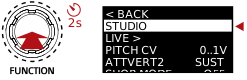
If in another mode (such as Live Song or Jam mode), Studio mode can be accessed
by pressing the FUNCTION encoder and keeping it pressed for at
least 2 seconds, and then choosing STUDIO from the menu.
Live Modes
The more advanced Live modes are typically used when preparing for live conditions. The main idea is to be able to automate kick changes, while keeping room for improvisation.
The Live Song mode is preferred when playing a track with limited room for improvisation. All kicks of a program are organised into a sequence, and the FUNCTION trigger is used to advance from one kick to the next in that sequence.
In contrast, the Live Jam mode is preferred when playing a performance with no strong preconception of the outcome, and keep maximum room for improvisation. In this mode, all kicks are regrouped in programs, and the user can freely select the kick to play next.
Kick Snapshot
In both modes, the user will prepare their performance by saving snapshots of their kicks, which includes model variations as well as all knob positions. Those snapshots or “steps” are organised into a program, and each program defines how one can take over knobs for improvisation.
One can snapshot a kick by pressing the HIT button and keeping
it pressed, and then click the FUNCTION encoder.
Alternatively, in Studio mode, snapshots can be saved by nagivating to the SNAPSHOT sub menu,
and then choose SAVE.
One will select a step, click the FUNCTION encoder and then name the step if desired.

Functions
Bohm has 32 programs, and each program is defined by:
Its number of steps, from 1 to 16
The actual steps, which contain an entire snapshot of a kick (model variations and knob positions)
The knob options (Latch, Relative or Override)
The follow action (None, Loop or next program number, only relevant in Song mode)
The performer mode (Include or exclude)
Regarding the per sequence knob options:
With the Latch
LAToption, the parameter value will “jump” to the knob position as soon as the knob is turnedWith the Relative
RELoption, the parameter value is relative to the knob position when the step was loadedWith the Override
OVRoption, the step parameter value is ignored and the current knob position is used instead
During a live performance, the artist will often want the Performer settings to be the same for all program steps.
Instead of making sure that each step of the program has the Performer correctly
configured, and have to change every steps in case of a mistake, the program
can ignore the Performer settings of the steps and take instead the one which
was active when the live mode was started. This is called the “Exclude” (EXCL)
option, and is the default.
If the user actually wants to explicitely recall the Performer settings that
were saved for each step, they can include them by selecting the “Include” (INCL)
option.
Song Mode
The Live Song mode interprets each program as a sequence of steps.
In that mode, 2 decks are displayed. Each deck can play a kick while the other is preparing the next kick by loading it in advance.
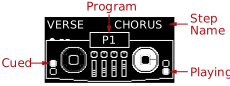
To advance by one step into the sequence, FUNCTION can be sent a trigger, and the kick becomes active as soon as HIT is pressed or triggered.
Note
Because it takes some time to load a model, Bohm will start to pre-load the next step as soon as a step becomes active. Therefore two steps can only be as close in time as the time it takes to load the next model.
One can define the number of steps of the sequence, which can be looped, simply end or can start another sequence when it ends.
The follow action dictates what to do after the program end is reached:
With the Loop option, the sequence goes back to the first step
With the End option, the sequence stops, and keeps the last step active
With the program number option, the sequence will automatically start the program designated by the choosen number
Jam Mode
The Live Jam mode display each program as a set of kicks.
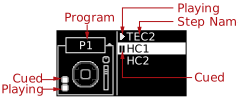
The FUNCTION encoder is used to select the next kick to play. As the encoder is turned, the kick is automatically loaded.
One can then “Cue” the kick by clicking on the FUNCTION encoder, and the kick becomes active as soon as HIT is pressed or triggered.
Program Clear
It is possible to completely clear and reset a program to its defaults by navigating in
LIVE then select the target “Program Number” (PRG NBR) and finally
go to the end of the list, click CLEAR and confirm the action.
Examples
Example: Song Mode
Alex wants to setup their live set for which they have different kicks for each verse, chorus and bridge sections, organised in a classic verse-chorus-verse-chorus-bridge-chorus sequence. They also want to keep control of the Bohm COLOR knob at all time, so that the knob position of the kick when saved is simply ignored.
In that configuration, Alex will want to use Live Song mode for simplicity. They could have also used the Jam mode, but Song mode allows them to free their mind a bit, as they just need to trigger FUNCTION to go to the next kick, while they are busy on other instruments. They can even sequence those kick changes completely from their sequencer if they want.
First they will setup for example program 1, with 6 steps, and appropriate mode for the Bohm COLOR knob:
Long press FUNCTION to access system settings
Go to
LIVEsub menuSet
PRG NBR(program number) to1Set
NBR STEPS(program number) to6Navigate
POT OPTIONSthenBOHMthenCOLORand set toOVR(override)Then exit the system settings by navigating
BACK
Then, they will prepare the kicks:
Prepare the first kick for the verse
They press HIT and FUNCTION and choose step 1 and repeat this operation for step 3
Similarly, they prepare their chorus kick and save it to steps 2, 4 and 6
Similarly, they prepare their bridge kick and save it to step 5
Finally it is time to start the Live in Song mode:
long press FUNCTION and navigate to
LIVEthenSTART SONG
Example: Jam Mode
Blake wants to setup their live set which will be a jam with other musicians. The music genre is known and they want to prepare a set of their favorite kicks for the style to use during that jam.
First they will setup for example program 2:
Long press FUNCTION to access system settings
Go to
LIVEsub menuSet
PRG NBR(program number) to2Then exit the system settings by navigating
BACK
Then, they will prepare the kicks, and snapshot them by pressing HIT, keeping it pressed and then click FUNCTION, and choose an available step.
Finally it is time to start the Live in Jam mode:
long press FUNCTION and navigate to
LIVEthenSTART JAM